
Documentation – Scripting
Scripting made simple for powerful configurators
Transform ideas into interactive experiences
3D Model Scripting
Enhance your 3D configurators with powerful scripting capabilities. An VBA like Javascript API gives you the ability to make 3D scenes interacctive
Seamlessly connect your Excel sheets to create dynamic, data-driven 3D models.
Build custom user interfaces for your 3D configurators using our intuitive tools.Supports Libraries such as jQuery and React
Excel Integration
UI Customization
To get interaction in the 3D Model you can use the powerful scripting API. The API is inspired by Excel’s VBA. The language ist Javascript.
You need to understand basic concepts of programming and of javascript to use this powerful tool. You can do many things with the javascript API:
-
create interaction in the 3D-Model
-
shorten your Excel-Sheet data e.g. by using loops
do additional automation
The documentation for the scripting API is still in progress. There will be examples soon. Please write an E-mail if you need more information!
Don’t confound: The scripting API is not the developer API. The developer API is for additional GUI and heavier programming tasks whereas the Scripting API is used within sheetBuild’s Editor.
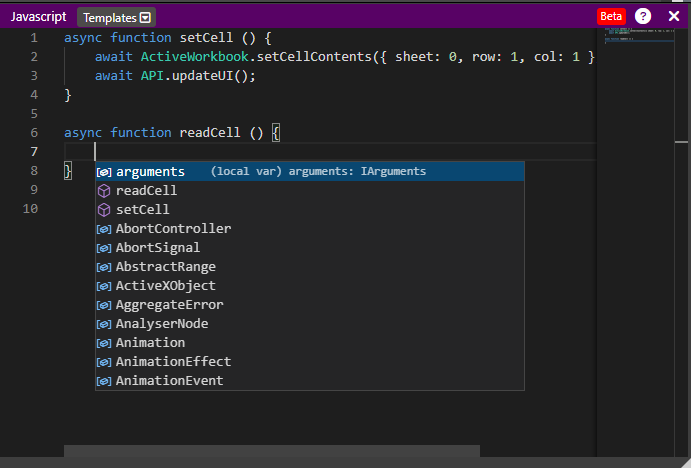
General Usage
On the top you can select templates which gives you code snippets for specific functions.
As in excel VBA you can access the active project via
ActiveWorkbookYou can also read and write values from/to a cell.A Context menu can be opnened via Ctrl+Space as in most code editors. this menu helps you as you know it from your favourite IDE.
Setting the contents of a cell can be very performance consuming especially if there are many cell references to this cell. Therefore you have to call
API.updateUI();
to update the user interface.
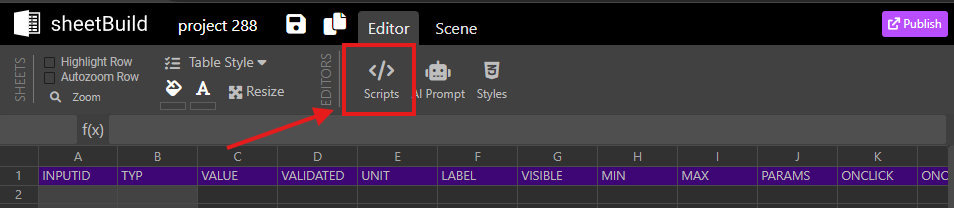
Open the Script Editor via the script icon in the menu bar.
Every function is beginning with the async keyword. Normally you await calls to the ActiveWorkbook and API object.
!
Work with sheet data
There are functions to read and write data to cells in the sheet:
async getCellValue(cellAddress: SimpleCellAddress)
async getCellFormula(cellAddress: SimpleCellAddress)async setCellContents(topLeftCornerAddress: SimpleCellAddress, cellContents: RawCellContent[][] | RawCellContent)
async getRangeValues(source: SimpleCellRange)async getRangeFormulas(source: SimpleCellRange)
Use always ” and not ‘ for strings!
async function enteractor (object) { console.log(“blue “, object);
object.material.color.set(“#ff0000”);// await ActiveWorkbook.setCellContents(
// { sheet: 0, row: 35, col: 5}, “#ff0000;0.15;0.8;0.4;1”// );
await API.updateUI();
}
async function leaveactor (object) {console.log(“Rred”, object);
object.material.color.set( “#ebebeb”);// await ActiveWorkbook.setCellContents(
// { sheet: 0, row: 35, col: 5}, “#ebebeb;0.25;0.1;0.5;1”// );
await API.updateUI();
}
Reading and writing data to cells can take time. You need to call:
API.updateUI();after you finished your edits to to an UI update.
I
There are hooks which are executed on different events of the sheetBuild project.
async projectLoaded(project)
async projectActivated(project)async setConfigurationParams(sheetId, paramNames, params)async getactiveconfig()
async saveconfig(id?: string)async loadconfig(configid)
You can also execute javascript code on ButtonClick

Custom User Interface
Helper functions
There are helper functions which can be useful in a lot of cases:async getSheetDimensions(sheetId: number)
async simpleCellAddressFromString(cellAddress: string, sheetId: number) // cellAdress e.g. “A1”async simpleCellAddressToString(cellAddress: SimpleCellAddress, sheetId: number)
async searchCell(value, range)
Data Types
SimpleCellAddress{
sheet :number, col :number,
row: number}
SimpleCellRange{ start: { row: number, col: number, sheet: number },
end: { row: number, col: number, sheet: number }}
3D Object Interaction
There are specific events on 3D Output Objects:
MouseClick(object)
MouseEnter(object)MouseLeave(object)
MouseMove(object)MouseDown(object)
MouseUp(object)
you can enter the javascript function name into the parameter cell so that this function is executed on that event. For example you can change the color via object.material.set(“#660000”); to red.
Use always ” and not ‘ for strings!
async function enteractor (object) { console.log(“blue “, object);
object.material.color.set(“#ff0000”);// await ActiveWorkbook.setCellContents(
// { sheet: 0, row: 35, col: 5}, “#ff0000;0.15;0.8;0.4;1”// );
await API.updateUI();
}
async function leaveactor (object) {console.log(“Rred”, object);
object.material.color.set( “#ebebeb”);// await ActiveWorkbook.setCellContents(
// { sheet: 0, row: 35, col: 5}, “#ebebeb;0.25;0.1;0.5;1”// );
await API.updateUI();
}
These events on 3D-Objects in the scene have the object as the parameter. Use for example console.log(object) to see the properties in the Browser console.